

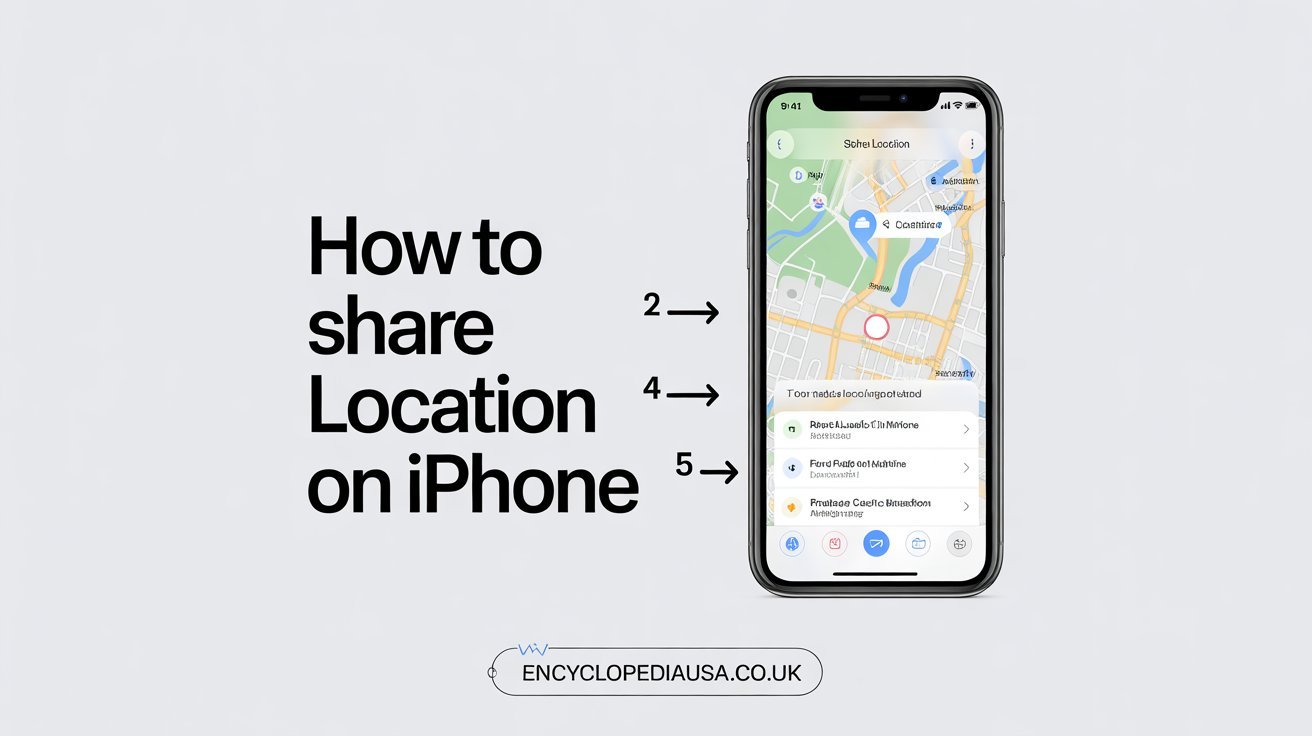
How to Share Location on iPhone: The Complete Easy Guide 2026
Introduction
You’re meeting friends at a crowded festival, coordinating a family pickup, or helping someone find their way to your new apartment. Knowing how to share location on iPhone makes these everyday situations so much easier. Instead of texting confusing directions or playing phone tag about where you are, you can simply send your exact location with a few taps.
Apple has built several ways to share your location directly into the iPhone, and each method serves different purposes. You might want to share your location temporarily while meeting someone, continuously so family can always find you, or just once to show where a great restaurant is located. The good news is that learning how to share location on iPhone is straightforward once you know where to look.
In this comprehensive guide, you’ll discover every method for sharing your iPhone location. We’ll cover the Find My app, iMessage, Apple Maps, third-party apps, and important privacy settings. By the end, you’ll know exactly which method to use for any situation and how to control who sees your location.
Why Share Your Location from iPhone?
Before diving into the how, let’s talk about why location sharing has become so useful. Understanding the benefits helps you decide when and with whom to share your location.
Location sharing enhances safety significantly. Parents can check that their kids arrived at school safely. Friends can ensure everyone got home after a night out. If you’re traveling alone, sharing your location with trusted contacts provides peace of mind.
Coordination becomes effortless when you share location on iPhone. Meeting up with friends means no more “where are you?” texts every five minutes. You can simply check the map and see exactly where everyone is in real time.
Planning gets easier too. When family members share locations, you know when someone is almost home so you can start dinner. You can time your departure to meet someone without arriving too early or too late.
Emergency situations are another crucial reason. If something goes wrong and you need help, emergency contacts who have access to your location can assist much faster. This capability has literally saved lives.
How to Share Location on iPhone Using Find My
The Find My app is Apple’s primary location sharing tool. It combines the old Find My iPhone and Find My Friends apps into one comprehensive solution. This is typically the best method when you want ongoing location sharing with family and friends.
Setting Up Find My App

First, you need to ensure Find My is enabled on your iPhone. Open the Settings app and tap your name at the top. Select Find My, then tap Find My iPhone. Toggle on Find My iPhone if it’s not already enabled.
You’ll also want to enable Share My Location in the same menu. This setting allows you to share with others. Make sure your Apple ID is signed in, as Find My requires this for functionality.
Sharing Your Location Continuously
Open the Find My app on your iPhone. You’ll see two tabs at the bottom: People and Devices. Tap the People tab to manage location sharing with contacts.
Tap the plus button or “Share My Location” to start. Select a contact from your list or type their name to search. You can choose how long to share: one hour, until end of day, or indefinitely.
When you select indefinitely, that person can see your location whenever they open Find My until you manually stop sharing. This option works great for family members who you want to keep informed of your whereabouts.
The recipient will receive a notification that you’re sharing your location. They can choose to share their location back with you, creating two-way visibility. This mutual sharing is ideal for close relationships where both parties benefit.
Stopping Location Sharing in Find My
You maintain complete control over who sees your location. To stop sharing, open Find My and go to the People tab. Tap the person’s name, then scroll down and select Stop Sharing My Location.
The change happens immediately. That person will no longer see where you are, though they’ll receive a notification that you stopped sharing. You can always start sharing again later if circumstances change.
How to Share Location on iPhone via Messages
iMessage offers a quick, convenient way to share your location. This method works perfectly for temporary situations where you need to show someone where you are right now or where you’ll be for a specific period.
Sending Your Current Location Once
Open the Messages app and select the conversation with the person you want to share with. Tap their name or photo at the top of the screen. This opens the contact details for that conversation.
Look for the info button or simply tap their name to see options. You’ll see “Send My Current Location” as one of the choices. Tap this to instantly send a map snapshot showing exactly where you are at that moment.
The recipient sees a map pin with your location. They can tap it to open in Maps and get directions. This one-time share doesn’t update, so it shows where you were when you sent it, not where you are now.
I find this method super helpful when meeting someone and they’re having trouble finding the exact spot. Instead of describing landmarks, just send your current location and they can navigate directly to you.
Sharing Live Location Through Messages
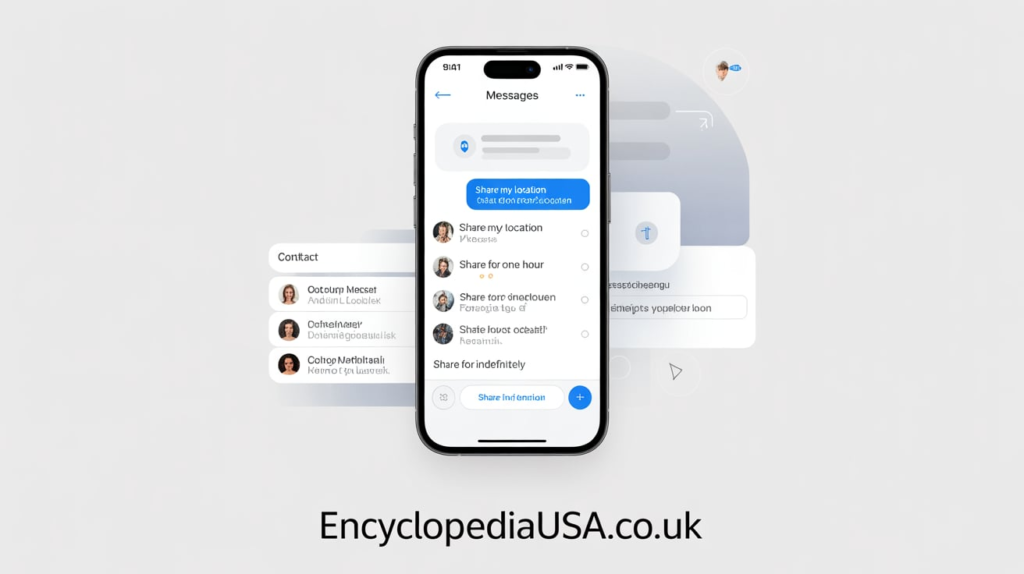
For ongoing location sharing during a specific event, tap the contact’s name in Messages. Instead of “Send My Current Location,” choose “Share My Location.” You’ll get options for how long to share.
Select one hour, until end of day, or indefinitely. Your live location appears in the conversation, updating as you move. The recipient can tap the map to see your current position and track your movement.
This feature is perfect for situations like “I’m on my way” where the other person wants to know your progress. They can see you approaching without needing constant updates. When the time expires, sharing stops automatically.
Managing Message Location Sharing
To stop sharing early, go back to the conversation and tap the contact’s name. You’ll see “Stop Sharing My Location” as an option. Tap it and sharing ends immediately.
Remember that location sharing through Messages uses the same underlying system as Find My. If you’ve disabled location services completely, you won’t be able to share through Messages either.
How to Share Location on iPhone Using Apple Maps
Apple Maps provides another straightforward way to share location on iPhone. This method is particularly useful when you want to share a specific place rather than your current position.
Sharing a Place or Address
Open Apple Maps and search for the location you want to share. This could be a restaurant, park, address, or any point of interest. Tap the location to see its details.
You’ll see a card at the bottom with information about the place. Swipe up on this card to expand it. Look for the Share button, which typically shows the standard iOS share icon.
Tap Share and you’ll see all your sharing options. You can send the location via Messages, Mail, or any other app that appears. The recipient gets a link that opens in Maps, showing exactly where the place is located.
This method differs from sharing your current location because you’re sharing a specific destination. It’s ideal for saying “meet me here” or “check out this great coffee shop I found.”
Sharing Your Current Location in Maps

If you want to share where you are right now using Maps, tap the blue dot that represents your location. A card appears at the bottom showing “My Location.” Swipe up to expand it.
Tap Share My Location from this card. Choose how you want to send it and select a recipient. They’ll receive a map pin showing your exact position when you shared it.
Like sharing through Messages, this is a one-time snapshot. If you need ongoing tracking, use Find My or the Messages live location feature instead.
Third-Party Apps for Location Sharing
While Apple’s built-in options work great, several third-party apps offer additional features for sharing location on iPhone. Let’s explore the most popular ones.
WhatsApp Location Sharing
WhatsApp has become a global communication standard. To share your location, open a chat and tap the plus icon. Select Location from the menu that appears.
You can choose to share your live location for 15 minutes, 1 hour, or 8 hours. Your contact sees your position updating in real time on a map within the chat. This works even with contacts who don’t have iPhones.
WhatsApp also lets you share a specific place. Search for locations using the built-in map and send any spot you find. This cross-platform capability makes WhatsApp useful when communicating with Android users.
Google Maps Location Sharing
Google Maps offers robust location sharing features. Open the app and tap your profile picture in the top right. Select “Location sharing” from the menu.
Tap “Share location” and choose a contact or copy a link to send however you want. You can set a time limit or share indefinitely. Recipients with Google accounts can see your location in their Google Maps app.
One advantage of Google Maps is the timeline feature. You can review where you’ve been, which helps if you need to remember the name of a place you visited.
Life360 Family Locator
Life360 is designed specifically for families. It creates private circles where members share locations continuously. The app shows everyone’s position on a map in real time.
Beyond basic location, Life360 offers place alerts. You get notified when family members arrive at or leave specific locations like home, school, or work. The app also includes a panic button for emergencies.
Many families prefer Life360 because it’s dedicated to location sharing with additional safety features. The interface is designed around family coordination rather than general mapping.
Privacy and Security When Sharing Location
Understanding how to share location on iPhone includes knowing how to protect your privacy. Location data is sensitive, so you should manage it carefully.
Controlling Who Sees Your Location
Only share your location with people you trust completely. Family members and close friends are appropriate. Be cautious about sharing with acquaintances, coworkers, or people you’ve recently met.
Review your location sharing regularly. Open Find My and check the People tab to see everyone who can see you. Remove anyone who no longer needs access.
Remember that sharing location is always your choice. Don’t feel pressured to share if you’re uncomfortable. You can decline requests or stop sharing without explanation.
Location Services Settings
You can manage which apps have access to your location. Go to Settings, then Privacy & Security, then Location Services. You’ll see every app that’s requested location access.
For each app, you can choose:
- Never: The app cannot access your location
- Ask Next Time: You’ll be prompted each time the app wants location
- While Using the App: Only when you’re actively using it
- Always: Even when the app is in the background
Be selective about which apps get “Always” access. Most apps only need location while you’re using them. This setting both protects privacy and saves battery life.
Hiding Your Location Temporarily
Sometimes you want to stop sharing without making it permanent. You can temporarily disable location sharing by turning on Airplane Mode. This stops all location updates until you turn it back off.
Another option is going to Find My, selecting yourself, and toggling off Share My Location. This stops sharing with everyone at once. Turn it back on when you’re ready.
For more discreet temporary hiding, you can simply turn off Location Services in Settings. This affects all location based features, so use it only when needed.
Troubleshooting Location Sharing Issues
Sometimes sharing location on iPhone doesn’t work as expected. Here are common problems and solutions.
Location Not Updating
If your location appears frozen or outdated, check your internet connection first. Location sharing requires either WiFi or cellular data to transmit updates. Connect to a network and see if the location refreshes.
Verify that Location Services is enabled. Go to Settings, Privacy & Security, Location Services, and make sure it’s turned on. Also check that the specific app you’re using has location permission.
Restart your iPhone if location still won’t update. Press and hold the side button and volume button until the power off slider appears. Slide to turn off, wait 30 seconds, then turn it back on.
Can’t See Someone Else’s Location
If you can’t see another person’s location, first confirm they’re actually sharing with you. They may have stopped sharing or the time limit expired. Ask them to check their Find My settings.
Make sure you’re signed into iCloud with your Apple ID. Location sharing through Find My requires both parties to be signed in. Check in Settings under your name.
Sometimes the other person needs to update their iOS version. Old software versions can cause compatibility issues with location features. Ask them to check for updates in Settings, General, Software Update.
Location Services Draining Battery
Continuous location sharing does use battery power. To minimize drain, limit how many apps have “Always” access to location. Switch most apps to “While Using” in Location Services settings.
You can also disable Precise Location for apps that don’t need exact coordinates. This setting is available for each app in Location Services. Less precise tracking uses less power.
Consider sharing location only when needed rather than continuously. For everyday situations, sharing for a few hours is usually sufficient and saves battery compared to indefinite sharing.
Best Practices for Location Sharing
Following some simple guidelines helps you share location on iPhone safely and effectively.
When to Share Your Location
Share during specific activities that benefit from coordination. Meeting up with friends, family events, travel situations, and emergencies are all good times. Don’t leave location sharing on indefinitely unless there’s a clear ongoing need.
Parents often share with children for safety reasons. This makes sense for younger kids or teenagers who are becoming more independent. Have conversations about privacy and trust as part of this arrangement.
Couples frequently share locations with each other. This can enhance feelings of connection and security. However, make sure both partners are comfortable and that sharing isn’t being used for control or surveillance.
Managing Multiple Shares
Keep track of who can see your location. Periodically review the People tab in Find My. Remove people who no longer need access, like friends you’ve lost touch with or events that ended.
Don’t feel obligated to accept every location sharing request. You can decline politely. If someone pressures you to share your location, that’s a red flag worth examining.
Consider creating groups for different contexts. Family members might always see your location, while friends only see it during specific outings. Apple doesn’t offer formal groups, but you can mentally organize your shares this way.
Communicating About Location Sharing
Talk to people before sharing location, especially with family. Explain why you want to share and what benefits it provides. Make sure everyone understands they can stop sharing anytime.
With children, discuss the purpose of location sharing. Frame it as a safety tool, not surveillance. As kids get older, gradually adjust the arrangement to respect their growing independence.
If you need to stop sharing with someone, you can mention it directly. A simple “I’m turning off location sharing to save battery” or “I’m being more selective about location sharing for privacy” usually suffices.
Advanced Location Sharing Features
Beyond basic sharing, your iPhone offers some sophisticated location capabilities.
Location Based Reminders
You can set reminders that trigger when you arrive or leave locations. Open Reminders and create a new reminder. Toggle on “When I Arrive” or “When I Leave” and select a location.
This feature uses your location but doesn’t share it with others. It’s useful for remembering tasks like “grab groceries when I leave work” or “check mail when I get home.” The iPhone notifies you at the appropriate moment.
Family Sharing and Location
Family Sharing groups can automatically share locations among members. Go to Settings, tap your name, then Family Sharing. Add family members and enable location sharing for the group.
This creates a simple way for families to stay connected. Parents can see children’s locations, and everyone can see each other if they choose. Each person can still control their own location sharing independently.
Share ETA
When you’re navigating with Apple Maps, you can share your estimated arrival time. During active navigation, tap the route card and select “Share ETA.” Choose a contact to receive updates.
The recipient sees your progress and updated arrival time as you travel. This works brilliantly when someone is waiting for you. They know exactly when to expect you without needing constant updates.
Conclusion
Learning how to share location on iPhone opens up convenient ways to coordinate with others and enhance safety. You’ve now learned multiple methods including Find My for ongoing sharing, Messages for temporary updates, Maps for sharing places, and third-party apps for additional features. Each method serves different situations, so you can choose the right tool for your needs.
Remember that controlling your location privacy is crucial. Share selectively with trusted people, review your sharing settings regularly, and don’t hesitate to stop sharing when it no longer serves a purpose. Your iPhone gives you complete control over who sees your location and for how long.
The next time you’re meeting friends, coordinating with family, or just want to let someone know where you are, you’ll know exactly how to share your location quickly and securely. Which location sharing method will you try first? Share this guide with someone who could benefit from these tips, or bookmark it for future reference when you need a refresher.
Frequently Asked Questions
How do I share my location on iPhone permanently?
Open the Find My app and tap the People tab. Tap the plus button, select a contact, and choose “Share Indefinitely” when prompted. This shares your location continuously until you manually stop it. The person can see your location anytime they open Find My.
Can I share my iPhone location with an Android user?
Yes, but not through Find My, which is Apple only. Use Google Maps or WhatsApp to share location with Android users. Both apps work cross-platform. In Google Maps, tap your profile, select Location Sharing, and send a link. In WhatsApp, use the location button in any chat.
Does sharing location drain iPhone battery?
Sharing location does use battery, but the drain is usually minimal with modern iPhones. Continuous sharing through Find My uses less power than you might expect. To minimize battery impact, limit which apps have constant location access in Settings and consider sharing only when needed.
How do I stop sharing my location without them knowing?
You cannot stop sharing completely without the person receiving a notification. When you stop sharing in Find My or Messages, they get notified. However, you can temporarily pause sharing by enabling Airplane Mode or turning off Location Services, which appears as your location being unavailable rather than deliberately stopped.
Can I share location on iPhone with specific time limits?
Yes, when sharing through Find My or Messages, you can choose to share for one hour, until the end of the day, or indefinitely. The sharing automatically stops when the time expires. This is perfect for temporary situations like meeting up or letting someone know you arrived safely.
How accurate is iPhone location sharing?
iPhone location is typically accurate within 10 to 20 feet when you have a strong GPS signal and internet connection. Accuracy improves outdoors with clear sky visibility. Indoors or in areas with poor signal, accuracy decreases. The blue circle around your location dot indicates the uncertainty range.
What’s the difference between Find My and sharing in Messages?
Find My is designed for ongoing location sharing with multiple people. It has a dedicated interface showing everyone’s locations on one map. Messages location sharing is more casual and temporary, integrated into conversations. Both use the same underlying location system but offer different user experiences.
Can someone track my iPhone without me knowing?
If you’ve shared your location through Find My or Messages, yes, those people can see where you are. However, no one can track your iPhone without your explicit permission. You can check who has access by opening Find My and reviewing the People tab. Remove anyone you don’t want seeing your location.
Why can’t my friend see my location on iPhone?
Common reasons include: Location Services is disabled, Find My is turned off, you’re not connected to internet, your friend isn’t signed into iCloud, or the sharing time limit expired. Check Settings for Location Services and Find My to ensure everything is enabled. Both people need active internet connections for sharing to work.
Does airplane mode stop sharing location?
Yes, airplane mode disables all wireless connections including GPS and cellular, which stops location updates. Your last known location remains visible until you turn airplane mode off and location services resume. However, this appears as connection issues rather than deliberately stopping sharing, though the person will notice your location isn’t updating.
Read More : Jail Vs Prison